![Lentune Logo_Brick_RGB.png]](https://www.lentune.com/hs-fs/hubfs/Lentune%20Logo_Brick_RGB.png?width=75&height=13&name=Lentune%20Logo_Brick_RGB.png)
In this article
• Overview
• Add multiple entries in one session
• Review and submit your entries
• Edit, duplicate or remove an entry
• Fix and resubmit a rejected entry
• FAQ
Overview
The Lentune mobile app lets you record and submit your timesheets from wherever you are working. Add one entry or several, check them on the calendar, and submit them for approval - all from your phone. This article walks you through each step.
Access your timesheets
To record your time in the Lentune mobile app, make sure you are set up and signed in:
- Update the app. Make sure you have the latest version installed.
- Sign in. Log in with your usual Lentune details.
- Open your timesheets. Tap the timesheets option.
Can’t see the timesheet option? You may need the Timesheet User role - contact your Lentune administrator.
View your day
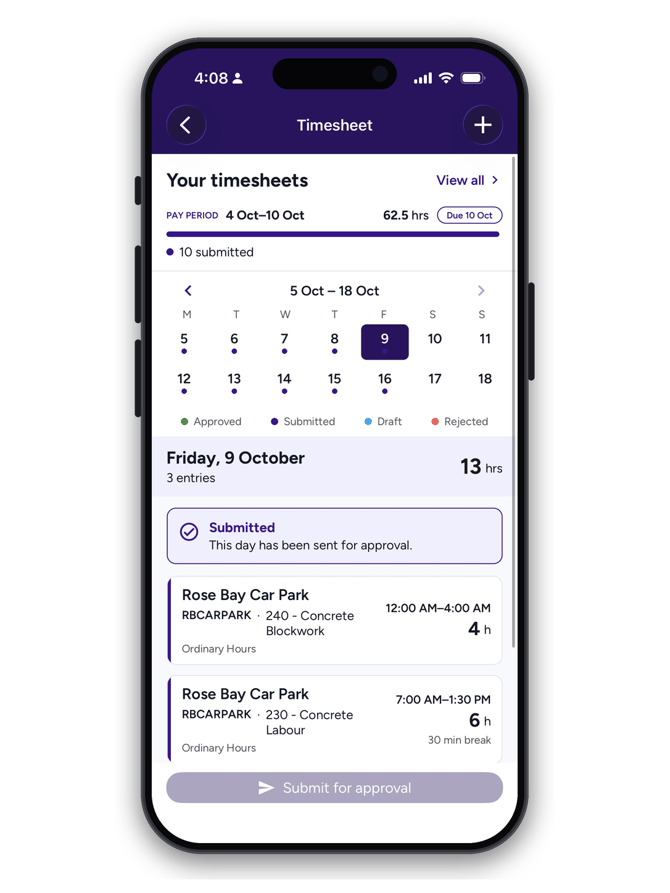
At the top you’ll see a calendar for your pay period, with the hours logged and the due date. Below it are your entries for the day you’ve selected. Tap any date to switch to that day.
Colours show the status of your time:
- Green – Approved
- Purple – Submitted
- Blue – Draft
- Orange – Rejected
Add a timesheet entry
- Tap + to start a new entry. The date defaults to today - change it if you’re catching up on an earlier day.
- Choose the project from your list (you’ll only see the jobs assigned to you).
- Choose the cost code. The list shows the cost codes for that project.
- Add a variation if one applies.
- Enter your times and break. Your hours are worked out for you.
Anything missing or incorrect is highlighted as you go. To clear an optional field, tap Clear.
If you leave before submitting, your entry is saved as a draft to finish later.
Add multiple entries in one session
Worked on more than one project or cost code? Add each one without starting over:
- Tap “Add another”. Your entry is saved, and a new one opens.
- Check the times. The start time picks up where your last entry ended - just set the correct finish time.
- Repeat for as many entries as you need.
Review and submit your entries
- Tap Submit for approval (or “Submit all for approval” if you’ve added more than one entry).
- Check the summary. Review your entries and the total, then keep editing or send.
- Confirm. Your entries go to your approver together. Tap Done on the confirmation.
Edit, duplicate or remove an entry
Before you submit, tap any entry to edit or remove it. To reuse an entry, open it and tap Duplicate:
- Exact Copy - a copy you can edit.
- Roll Time Forward - a new entry starting where this one ended, with the same details.
Fix and resubmit a rejected entry
Open a rejected entry to see why it was rejected at the top of the screen. Make your changes and submit it again - no need to start over.
Track your timesheets
- Calendar. Colours show each day’s status at a glance.
- Refresh. Pull down to update statuses after approvals.
- View All. Use the Drafts, Rejected, Submitted and Approved tabs to find entries by status.
FAQ
Q: I worked an overnight shift. Which day does my time show on?
A: Time is shown against its entry date - the day the entry starts on - even if the shift runs past midnight into the next day. This matches how time appears in the Lentune web app. For more on recording shifts that cross midnight, see Entering Overnight Time in Timesheets.
Q: Why can’t I see a particular project or cost code?
A: The project and cost code lists only show the jobs assigned to you, to keep them short and relevant. If something you need is missing, contact your Lentune administrator.
Q: Do allowances still work?
A: Yes. Allowances are set up by your administrator and calculated exactly as they are today - there is no change to how allowances work.
Q: Do I need to submit each entry separately?
A: No. You can add as many entries as you need in one session and submit them all together in a single action. You can also add and submit a single entry on its own.
Need more help? We’re here! We hope our article was helpful. If you need more info or want to connect, drop us an email at support@lentune.com.