![Lentune Logo_Brick_RGB.png]](https://www.lentune.com/hs-fs/hubfs/Lentune%20Logo_Brick_RGB.png?width=75&height=13&name=Lentune%20Logo_Brick_RGB.png)
This release brings a faster way to populate purchase order allocations, clearer visibility of reverted invoices for approvers, and the next step in a centralised project workspace that brings approvals together in one place. You can also now add sections to your head contract claims. Alongside these, you'll find a batch of improvements across Invoice Automation, Subcontract Claims, Purchase Orders, Projects, Stock and login, rounded up in In Other News.
Populate Allocations from Ordered Amounts
If you are using allocations rather than invoice line reading, you can now fill in invoice allocations in a single click rather than typing a quantity and amount on every line, a real time-saver on purchase orders that run to 20, 30 or more lines.
- On the allocations screen, the More dropdown now includes Populate allocations based on ordered amounts.
- The action applies only to the allocation lines you have selected, so you stay in control of what gets filled.
- Allocations are populated using the ordered quantities and amounts from the purchase order.
- We've also swapped the order of the Quantity and Unit price fields so quantity comes first, matching the layout of almost every supplier invoice, so there's no need to juggle the numbers as you key them in.
Reverted Invoices. Clearer Visibility and Reasons
First approvers can now see at a glance when an invoice has been sent back to them and why, without having to dig through the audit log or ask a colleague.
- Reverted invoices are now clearly flagged in the first approver's queue.
- You can see which user reverted the invoice and when.
- The message history is now viewable on this page, so the reason an invoice was sent back is right where you need it.
- The result is faster turnaround and less back-and-forth when an invoice needs fixing.
A Centralised Project Workspace. Approvals in the Project Tabs
We're continuing to build the Project screen into a single, project-based landing spot, so the things you need to do around a project can be done from one place rather than jumping between disconnected screens.
- Approvals are now surfaced directly within the Project tabs, bringing all approvals alongside cost visibility for the project.
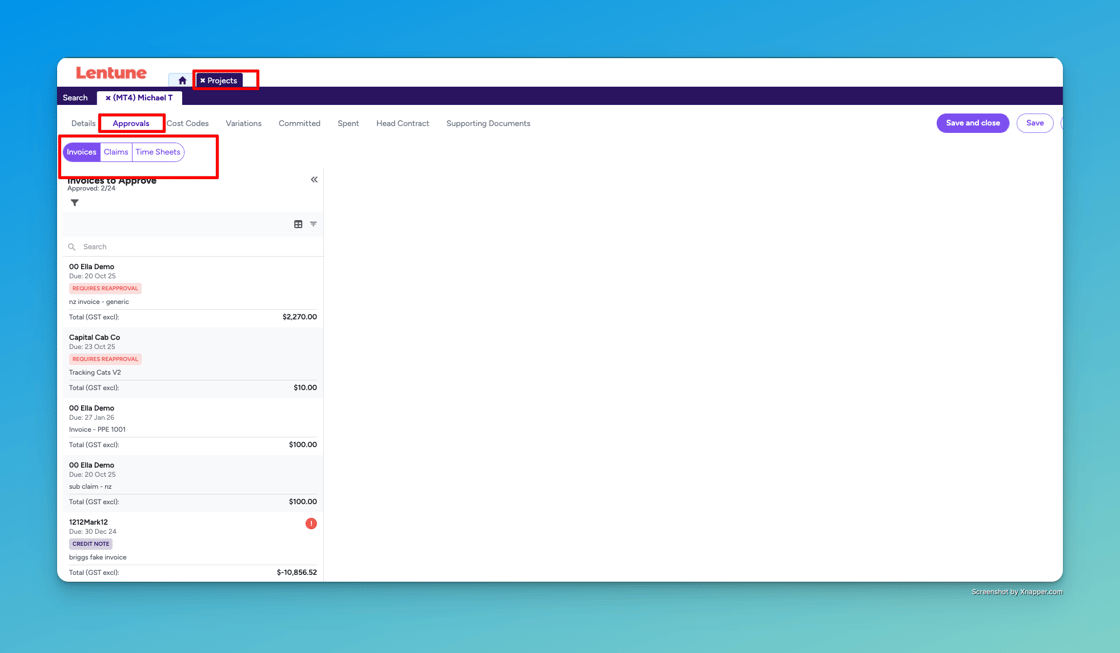
- This reduces the navigation between separate approval screens in different modules.
- N.B.The new experience is not being released to by default, but can be requested by contacting the support team.
Claim Sections on Head Contract Claims
You can now organise a head contract claim into clear, client-specific sections, restoring a familiar workflow and helping your claims line up with how your clients like to read them.
- An optional Section field is now available on the trade summary lines.
- When populated, the section appears on the payment claim PDF as a bold header above the relevant trade summary line on the claim summary.
- Presenting claims in the client's preferred format makes them easier to read and review and quicker to approve.
Three-Way Match Improvements
Three-way match can now match invoice lines by supplier part number and product code (falling back to description), helping invoices auto-match where suppliers alter line descriptions.
N.B. This is controlled by a system setting and is off for existing customers unless enabled.
In Other News
Subcontract Claims
- When converting an invoice to a subcontract claim, you can now Save and mark as approved from within the modal — no need to head into the payment claims module to check it off.
- The subcontract approval screen now correctly shows previously certified values on later claims when a line has a negative completed value.
Head Contracts
- The customer reference / external notes field has been hidden from the head contract view, removing a confusing field when adding contract lines.
Purchase Orders
- The committed cost now displays correctly on the project Purchase Orders tab, rather than showing a blank column.
- The purchase order PDF now uses each line's own project rather than pulling the header project onto every line.
Projects & Reporting
- The Project Variations export now includes all columns shown in the screen, with consistent field names so the CSV maps clearly to what you see in Lentune.
Login & Security
- The message shown when a user without access tries to log in is now clearer, directing them to contact their administrator.
Thanks for continuing to share feedback, it plays a big role in shaping the improvements we prioritise in every release. Happy automating!
support@lentune.com | NZ: +64 3 351 9110 | AU: 1300 312 720