![Lentune Logo_Brick_RGB.png]](https://www.lentune.com/hs-fs/hubfs/Lentune%20Logo_Brick_RGB.png?width=75&height=13&name=Lentune%20Logo_Brick_RGB.png)
Mark a Freight Line on an Invoice
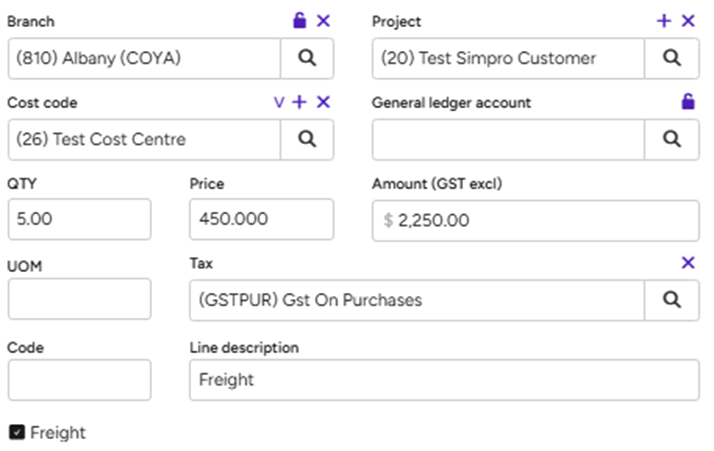
If an invoice includes a freight charge, open the invoice lines area and find the freight tick box on the relevant line.
Leave it unticked and that value is added to the purchase order as a normal item line.
Tick it, and Lentune instead posts that value to SimPRO's freight box on the receipt rather than adding it as a line. Any checker or approver can tick or untick this on any invoice, at any point before it's approved.
This setting can be turned on and off under the SimPRO Integration settings.
What Happens When You Approve the Invoice
Every time you approve an invoice against a purchase order, Lentune checks it against SimPRO first, and one of three things happens:
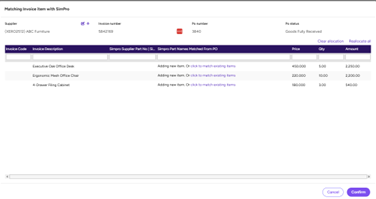
1. No receipt on the purchase order yet. Lentune shows the normal three-way match screen so you can match the invoice lines to the purchase order lines, exactly as you do today.
2. The purchase order already has a receipt, and its total matches the invoice exactly. No match screen or modals appear — the invoice number, date and a copy of the invoice are sent straight through onto that existing receipt.
3. The values are different, or there's more than one un-invoiced receipt on the purchase order. A match screen opens so you can resolve the difference before the invoice can be approved — see below.
Resolve a Match Screen
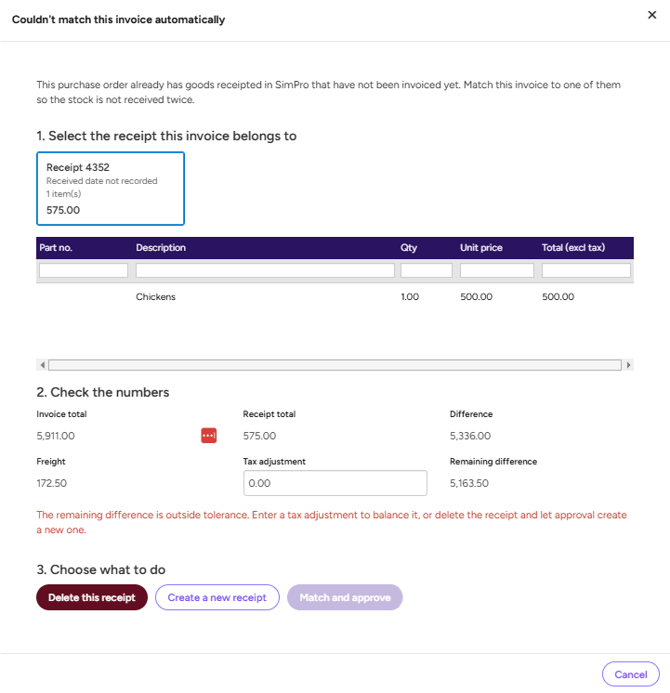
When Lentune can't match an invoice automatically, a screen titled “Couldn't match this invoice automatically” opens before the approval can go through. It walks through three steps.
1. Select the receipt this invoice belongs to. Every receipt sitting on the purchase order is listed as a card, showing its received date, number of items and total, so you can pick the one this invoice is for. Click into the receipt and it will pull through the lines on that receipt from SimPRO.
2. Check the numbers. Lentune shows the invoice total, the receipt total, and the difference between them. The freight field reflects any line you've ticked as freight on the invoice and can't be edited here directly; the tax adjustment field is where you enter small rounding differences yourself. Both come off the difference to give a remaining difference, which needs to reach zero before you can proceed. If it's still outside tolerance, Lentune warns you and asks you to enter a tax adjustment to balance it, or delete the receipt and let approval create a new one.
3. Choose what to do. Three buttons are on offer: Delete this receipt, Create a new receipt, and Match and approve. Match and approve stays greyed out until the remaining difference is resolved.
- Match and approve — Once balanced, or the correct receipt is selected, the invoice number, date and document will be sent to that receipt, along with the freight and tax adjustment values if they are relevant.
- Delete this receipt — removes the selected receipt in SimPRO and takes you straight into creating a fresh receipt for the invoice the same way you would today. You can't delete a receipt without immediately replacing it. Because deleting a receipt can affect stock levels and job costs, this button will also give a warning and is only available to people who've been given the security permission for it — check with your Lentune administrator if you don't see it.
- Create a new receipt — leaves every existing receipt on the purchase order untouched and creates a brand-new receipt for this invoice, matching its lines to the purchase order the same way you would without this feature. Use this when the receipts already there genuinely belong to something else. See Invoice Matching with SimPRO Job Management System for how that line-matching screen works.
If you're not ready to decide, choose Cancel — nothing changes, and the check simply runs again the next time someone approves that invoice.
FAQ
Q: Will I see the match screen on every invoice?
A: No. It only appears when there's more than one un-invoiced receipt on the purchase order, or the amounts don't match exactly. If there's a single un-invoiced receipt and the totals match exactly, Lentune matches it automatically and no screen appears.
Q: What if there's no receipt at all on the purchase order?
A: Then this feature doesn't come into play — you'll get the normal three-way match screen to match the invoice lines to the purchase order lines. See Invoice Matching with SimPRO Job Management System for how that works.
Q: Does matching an invoice to a receipt change the quantities or prices already on that receipt?
A: No. Matching only ever adds the invoice number, date, freight and tax adjustment to the receipt — the item quantities and pricing stay exactly as they were.
Q: What's the difference between the freight field and the tax adjustment field on the match screen?
A: The freight field is read-only — it simply reflects whatever you've ticked as freight on the invoice lines. The tax adjustment field is the one you can type into yourself, for tidying up small rounding differences that are left over once freight has been accounted for.
Q: Why is Match and approve greyed out?
A: Match and approve only becomes available once the remaining difference between the invoice and the receipt reaches zero, or falls within tolerance. Add a tax adjustment, or check whether the freight tick box needs adjusting on the invoice, to bring it into balance.
Q: Who can delete a receipt from the match screen?
A: Only people who've been given the specific security permission for it, since removing a receipt can affect stock levels and job costs. The security role code is PORECEIPTDELETE and can be added by your administrator.
Q: What happens if I cancel out of the match screen?
A: Nothing changes — the invoice and the receipts on the purchase order are left exactly as they were. The check simply runs again the next time someone approves that invoice.
Q: Where do I turn these features on?
A: Your Lentune administrator can enable already-receipted purchase order matching and freight handling independently of one another from Integration Settings — you don't need both switched on to use either one. See the SimPro - Lentune Integration FAQs for more on these settings.