![Lentune Logo_Brick_RGB.png]](https://www.lentune.com/hs-fs/hubfs/Lentune%20Logo_Brick_RGB.png?height=40&name=Lentune%20Logo_Brick_RGB.png)
Overview
Lentune is replacing passwords with a six-digit code sent by email. Because the code goes to a person’s inbox, an email address is now essential rather than optional, and it must be unique to that user. Anyone who signs in today with a user code alone will be unable to sign in until an address is added. Your job before your switch-over date is to review your user list, fill the gaps, and confirm your team is ready. This article covers how to check your users, how to track who is ready, and what changes for you day to day.
Check Your Users’ Email Addresses
- Go to Settings > User, or Administration > Users.
- Click Search to list your users. The list includes an Email column showing the address held against each user.
- Use the filter boxes beneath the column headings to narrow the list, for example to active users or time sheet users only.
- Work down the Email column looking for the three problems that will stop somebody signing in.
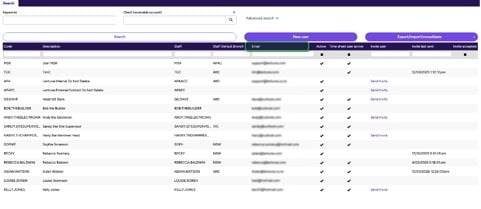
The Email column on the user list shows the address held for each user.
- A blank Email cell. That user cannot sign in until an address is added.
- The same address against two users. Each person needs their own unique address, because a code is sent to one inbox and is valid for one person.
- An address that is no longer valid, for example one belonging to somebody who has left, or a shared or generic mailbox that several people can open.
Pay particular attention to time sheet and site staff. They are the most likely to have been set up with a user code alone, and the least likely to have a company email address. It is worth checking that each person can actually open the inbox you have recorded, not simply that an address exists.
To work through the list outside Lentune, use Export/import/consolidate to export your users and check the addresses in bulk. To add or amend an address on a user record, see Add a new Lentune User.
What Changes for You as an Administrator
Adding, editing and deactivating users works exactly as it always has. Two things are different.
There is no longer a Reset password button. Because Lentune no longer uses passwords, the Reset password option no longer appears on a user record. If somebody cannot sign in, the cause is almost always their email address rather than their credentials, so start by checking that their address is correct, unique, and one they can open.
Deactivate leavers promptly. Closing somebody’s mailbox stops them receiving new codes, but it does not end a session they already hold. Deactivating their Lentune user record is what removes their access, so make sure it stays part of your offboarding process.
Security groups, security roles and access personas are not affected by this change. What each person can see and do in Lentune stays exactly the same. For a reminder of how those work, see Access Personas and how they work.
FAQ
Q: One of our users has no email address. What do we do?
A: Add one to their user record before your switch-over date. Until an address is held against the user, that person cannot sign in, and they will not see an error message explaining why.
Q: Can two users share the same email address?
A: No. Each user needs their own unique address, because a code is sent to one inbox and is valid for one person. Shared and generic mailboxes are not suitable, because anyone who can open the mailbox can sign in as that user.
Q: A user says no code arrives, but their address looks correct. What should we check?
A: Check the address on their user record character by character, check it is not also held against another user, and ask them to look in their junk folder. If all three are fine, ask your IT team whether the message has been quarantined by email filtering.
Q: How do we know a user is ready before the switch-over date?
A: Use the Invite last sent and Invite accepted columns on the user list to see who has been invited and who has completed setup.
Q: Where has the Reset password button gone?
A: It has been removed, because there are no longer any passwords to reset. Users no longer need one, and there is nothing for you to reset on their behalf.
Q: Does this change our users’ permissions or approval limits?
A: No. This changes authentication only. Security groups, security roles, access personas and approval limits all behave exactly as before.
Q: Can we check all our addresses at once rather than on screen?
A: Yes. Use Export/import/consolidate on the user list to export your users, then check for blank and duplicated addresses in the exported file.
Q: A user has left. Is closing their mailbox enough?
A: No. Deactivate their Lentune user record. Closing the mailbox prevents new codes but does not end a session they already hold. If you need access removed immediately and cannot action it yourself, contact support@lentune.com.
To share sign-in instructions with your team, point them at Sign in to Lentune with a One-Time Code. For IT and security teams, see Review Lentune Sign-In Security.
Need more help? We’re here! We hope our article was helpful. If you need more info or want to connect, drop us an email at support@lentune.com.